Accessibility: Computer Settings That Can Help Persons With Parkinson’s – Part 2
By Margaret Tuchman, President of The Parkinson Alliance
Having Parkinson’s and using a computer is often a struggle. As mentioned in Part One (which appears below this post), changing some computer operating system settings were a big help to me. Here are a few more changes that I made which continue to make my computer experience much easier.
Removing the magic from the mouse. Newer Macintosh computers offer some options for pointing devices, including the “Magic Mouse” and the “Magic Trackpad.” My purchase included the mouse. While people with more dexterity may love the many features of the multi-touch mouse, I found they made my computer experience a near nightmare! One wrong shake of my finger and my open windows flew off my screen! My best solution was to turn off the magic.
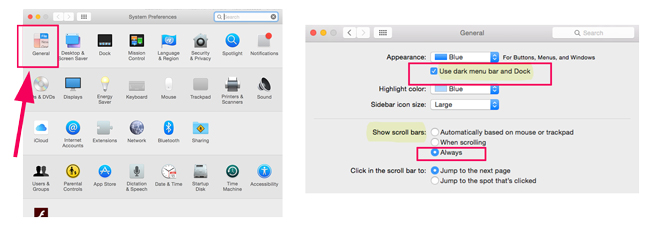
To do so, go to Finder > System Preferences > Mouse. In the mouse options, click the More Gestures tab. Turn off swipe between pages. Turn off swipe between full-screen apps. Turn off Mission Control. Under Point & Click, turn on scroll direction: natural. Turn on secondary click (I selected click on the right side, you may want to change this to left if you are left handed). Turn off smart zoom. You’ll see under this option that you can also control the tracking speed of the mouse.

I later tried the Magic Trackpad, thinking it might work better for me. It did not. Even with turning off its “magic” (you can find the options under Finder > System Preferences > Trackpad), I found the shape of the mouse was easier for me to grip and move.
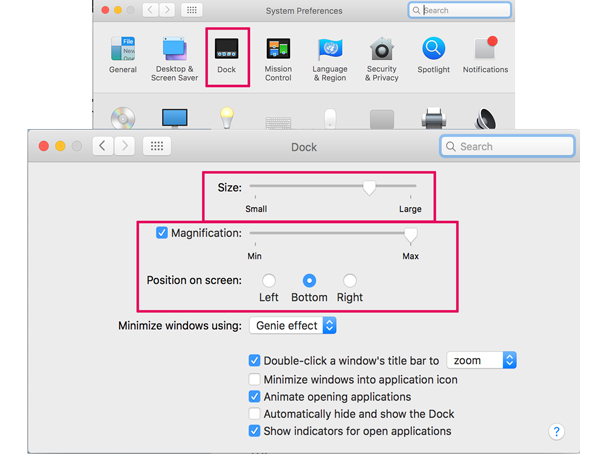
Enlarging dock icons and changing their position. I found making the dock icons larger and positioning them at the bottom of the screen was helpful. To do so, go to Finder > System Preferences > Dock. From there you can drag the slider to make your dock icons larger (or smaller). I set the magnification to maximum. While in the dock preferences, notice some of your other options. For example, you might like your dock icons on the left or right.
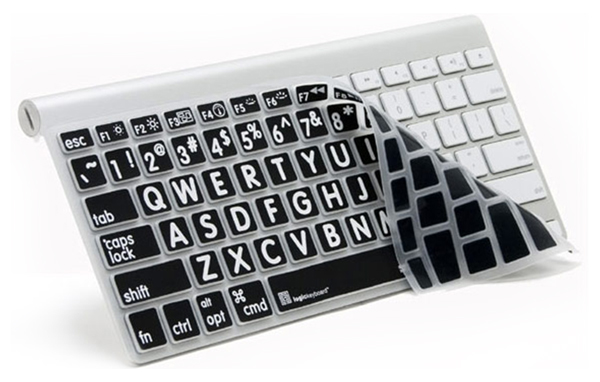
While not a setting, another thing that helped me a great deal was adding a large print keyboard cover to my keyboard. It’s an inexpensive add-on that greatly improves the readability of the keyboard. The image below is the cover I use, but there are others available. If you think this might help you, search for “large type keyboard cover” in your favorite search engine to find a cover to fit your keyboard.
Additional options. If you’re using Windows, there are similar adjustments you can make. In this article from Microsoft, you can find directions for using their Ease of Access control panel. More accessibility information from Microsoft is here.
Additionally, Apple and Microsoft both have retail stores with workers eager to answer your questions. It’s often very helpful to set up an appointment and work one to one. To get more information or set up an appointment with a person at Apple’s Genius Bar, go here. To get more information or set up an appointment with a person at Microsoft’s Answer Desk, go here.
Everyone’s Parkinson’s symptoms can affect them differently. These changes, while not at all time consuming to make, immensely improved my ability to continue using my computer. I’d like to hear from you. How does Parkinson’s affect your ability to use your computer? What changes have you made to make your computer experience a better one?